

Introduction
Many Shopify store owners are surprised when they test their website on Google PageSpeed Insights and see a low performance score, especially on mobile.
The store may look beautiful. Products may load correctly. Customers may still be placing orders. But when tested on PageSpeed Insights or Lighthouse, the score may show poor performance, slow loading speed, high JavaScript execution time, layout shifts, render-blocking resources, and poor Core Web Vitals.
This is a common issue with Shopify stores.
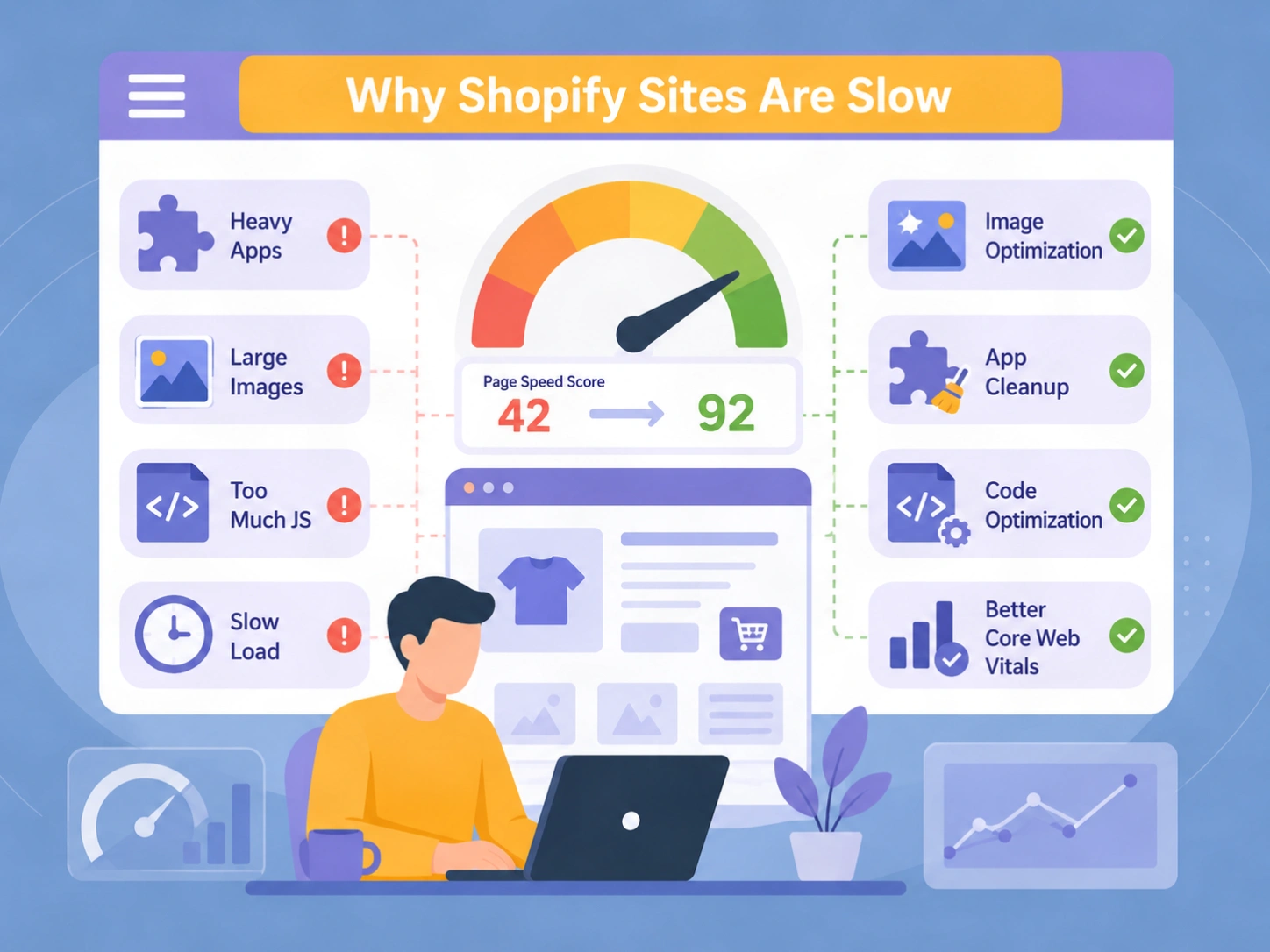
Shopify is a powerful e-commerce platform, but many stores become slow over time because of heavy themes, too many apps, large images, tracking scripts, third-party widgets, page builders, and unoptimized custom code.
Google PageSpeed Insights measures both lab data and real-user experience signals. Core Web Vitals focus mainly on three important metrics: Largest Contentful Paint (LCP), Interaction to Next Paint (INP), and Cumulative Layout Shift (CLS). Google uses these signals to evaluate loading speed, interactivity, and visual stability. (Google for Developers)
For Shopify stores, improving these scores is not only about getting a better number in a tool. A faster store can improve user experience, reduce bounce rate, improve conversions, and support better SEO performance.
|
Are you looking to fix the loading speed and performance issues on your Shopify store? FirstWire Apps is a Shopify Partner agency with 13+ years of experience and has worked with 1,000+ Shopify stores. We can help you improve your store’s performance, user experience, conversion rate, and long-term growth. We provide end-to-end Shopify services, including store setup, design revamps, performance optimization, CRO, ADA compliance, digital marketing, AI SEO/GEO/AEO, and ongoing monthly support for Shopify stores. Please send your store URL and requirements to info@firstwireapp.com. Our team will review your store and get back to you with an analysis, estimates, and a quotation to fix the performance issues on your Shopify store. You can also submit this form and our team will contact you. |
What Google PageSpeed Insights and Lighthouse Actually Measure
Before fixing speed issues, it is important to understand what Google is measuring.
1. Largest Contentful Paint – LCP
LCP measures how quickly the main visible content loads on the screen. On Shopify stores, this is usually the hero banner, product image, collection image, or a large text block. Google explains that LCP reports the render time of the largest image, text block, or video visible in the viewport. (web.dev)
If the homepage hero image is too large, if the product image is not optimized, or if scripts delay the rendering of the page, LCP becomes poor.
2. Interaction to Next Paint – INP
INP measures how responsive the page feels when users interact with it. For example, when a visitor clicks a menu, opens a filter, selects a product variant, clicks “Add to Cart,” or uses search.
If the browser is busy loading and executing too much JavaScript, the page becomes slow to respond.
3. Cumulative Layout Shift – CLS
CLS measures visual stability. A poor CLS score means elements move around while the page is loading. For example, the banner loads late, the announcement bar pushes content down, product images appear without reserved space, or review widgets shift the layout after loading. Google recommends a CLS score of less than 0.1 for a good user experience. (Google for Developers)
Why Shopify Stores Often Have Poor PageSpeed Scores
1. Too Many Shopify Apps Add Extra JavaScript and CSS
One of the biggest reasons Shopify stores become slow is the number of installed apps.
Many apps add JavaScript, CSS, tracking code, widgets, popups, review blocks, upsell offers, chat tools, loyalty programs, filters, currency converters, cookie bars, recommendation engines, and analytics scripts.
Even after an app is removed from Shopify admin, some leftover code may remain inside the theme files. This can continue to load unused scripts and slow down the site.
Common app-related performance issues include:
- Too many scripts loading on every page
- Apps loading on pages where they are not needed
- Render-blocking CSS and JavaScript
- Third-party scripts delaying the main content
- Leftover app code from deleted apps
- Duplicate functionality from multiple apps
For example, a store may have one app for reviews, another for popups, another for loyalty, another for search, another for filters, another for currency conversion, and another for email capture. Each app may look small individually, but together they can significantly increase page weight and JavaScript execution time.
Shopify itself recommends evaluating whether installed apps provide enough value to justify their performance impact. (Shopify Help Center)
How to fix it
Start with an app audit.
Review all installed apps and ask:
- Is this app still being used?
- Is this app adding visible value?
- Is this app required on every page?
- Can this feature be built directly into the theme instead?
- Are there multiple apps doing similar things?
- Has the app left old code inside the theme?
Remove unnecessary apps. Replace heavy apps with lighter alternatives where possible. For features like announcement bars, simple popups, badges, icons, FAQs, or tabs, consider implementing them directly in the theme instead of relying on another app.
2. Large and Unoptimized Images
Images are one of the most common causes of slow Shopify stores.
Most Shopify stores use large images for homepage banners, product photos, collection banners, lifestyle sections, blogs, and promotional blocks. If these images are uploaded in very large dimensions or heavy file sizes, they can slow down the store significantly.
Common image problems include:
- Uploading very large desktop-size images for mobile visitors
- Using PNG files where JPG or WebP would be better
- Not compressing images before upload
- Using full-size product images in small thumbnails
- Loading all images immediately instead of lazy loading below-the-fold images
- Using video-like animated GIFs instead of optimized video formats
- Not defining image width and height, causing layout shifts
A homepage with a large hero banner, multiple product sections, brand images, collection banners, testimonials, Instagram feed, and blog thumbnails can easily become heavy if images are not optimized.
How to fix it
Use correctly sized images for each section. Do not upload a 4000px wide image if the theme only displays it at 1600px or smaller.
Recommended actions:
- Compress all large images before uploading
- Use Shopify’s responsive image features
- Use WebP where supported
- Avoid huge PNG files unless transparency is required
- Use lazy loading for below-the-fold images
- Do not lazy load the main hero image or LCP image
- Add proper width and height attributes to reduce layout shift
- Use separate mobile-friendly banner images when needed
For product pages, ensure product images are high-quality but not unnecessarily large. For collection pages, thumbnails should load in the correct size instead of loading oversized product images.
3. Heavy Shopify Themes
Not all Shopify themes are built the same.
Some themes are lightweight and performance-focused. Others are feature-heavy and include many built-in options, animations, sliders, mega menus, product tabs, quick view, predictive search, video sections, countdown timers, cart drawers, and dynamic filters.
A premium theme may look beautiful, but if it loads too much JavaScript and CSS by default, the store can become slow.
Common theme-related issues include:
- Too many homepage sections
- Heavy sliders and carousels
- Large CSS files
- Large JavaScript bundles
- Unused theme features still loading
- Animation libraries loading on every page
- Page builder code increasing DOM size
- Old theme versions not optimized for modern Shopify standards
Shopify’s own performance guidance recommends building themes primarily with HTML and CSS, using JavaScript only where necessary as progressive enhancement. (Shopify)
How to fix it
Review the theme structure and remove unnecessary code.
Important fixes include:
- Disable unused theme features
- Remove unnecessary sliders and animations
- Reduce the number of homepage sections
- Remove unused CSS and JavaScript where possible
- Avoid loading product page scripts on collection pages
- Avoid loading collection filter scripts on the homepage
- Use native Shopify sections instead of heavy page builders
- Update the theme to the latest stable version
- Consider rebuilding the theme if it is too outdated or bloated
Sometimes, optimizing an old theme gives limited improvement. If the theme is outdated, heavily customized, or full of old app code, a theme upgrade or rebuild may be the better long-term solution.
4. Too Much JavaScript Execution
JavaScript is one of the biggest reasons for poor Lighthouse performance scores.
Shopify stores often load JavaScript from:
- Theme functionality
- Shopify apps
- Tracking pixels
- Analytics tools
- Facebook Pixel
- Google Tag Manager
- TikTok Pixel
- Review widgets
- Chat widgets
- Loyalty apps
- Search and filter apps
- Upsell and cross-sell apps
- Cookie consent tools
- A/B testing tools
When too much JavaScript loads early, the browser becomes busy. This delays rendering and makes the page less responsive. As a result, Lighthouse may show warnings such as:
- Reduce JavaScript execution time
- Minimize main-thread work
- Reduce unused JavaScript
- Eliminate render-blocking resources
- Avoid long main-thread tasks
This especially affects mobile scores because PageSpeed Insights tests mobile performance under more constrained conditions.
How to fix it
Delay non-critical JavaScript.
Examples:
- Load tracking scripts after the main page content
- Delay chat widgets until user interaction
- Load review widgets after the main product content
- Load popups after a few seconds instead of immediately
- Defer non-critical scripts
- Remove duplicate tracking codes
- Avoid loading scripts globally if they are needed only on specific pages
For example, a product review widget is useful on product pages, but it may not need to load on the homepage, cart page, or blog pages. Similarly, a product filter script is useful on collection pages, but it should not load everywhere.
5. Render-Blocking CSS and JavaScript
Render-blocking resources delay the browser from showing visible content.
If a Shopify theme loads large CSS or JavaScript files before the main content appears, the browser must download and process those files first. This increases LCP and lowers the PageSpeed score.
Common render-blocking issues include:
- Large theme CSS files
- Multiple app CSS files
- Font files loaded too early
- Synchronous JavaScript in the head
- Third-party scripts blocking rendering
- Page builder CSS and JS loading above the fold
How to fix it
Improve critical rendering.
Recommended fixes:
- Inline critical CSS for above-the-fold content where appropriate
- Defer non-critical JavaScript
- Load app scripts only where needed
- Remove unused CSS
- Reduce CSS file size
- Avoid excessive font variations
- Use system fonts where possible
- Preload only important assets such as the LCP image or critical font
The goal is simple: the browser should be able to show the main content quickly, without waiting for unnecessary scripts and styles.
6. Slow Hero Banner or Above-the-Fold Section
The above-the-fold area is the first visible section users see. On Shopify stores, this is usually:
- Hero banner
- Main product image
- Slideshow
- Collection banner
- Promotional section
- Header and navigation
If this section is heavy, LCP becomes poor.
A common mistake is using a large slideshow as the first section. Sliders often load multiple large images, JavaScript, transitions, navigation controls, and sometimes video. This can severely hurt the mobile score.
How to fix it
Optimize the first screen.
Best practices:
- Use one optimized hero image instead of a heavy slideshow
- Avoid autoplay sliders above the fold
- Use compressed images
- Preload the main hero image
- Keep the first section simple
- Avoid loading video as the first visible element
- Make sure mobile hero images are not oversized
- Keep headline text visible and lightweight
For many Shopify stores, replacing a homepage slideshow with a clean static hero section can noticeably improve LCP.
7. Too Many Tracking Pixels and Marketing Scripts
Marketing teams often add several tracking tools to a Shopify store:
- Google Analytics
- Google Tag Manager
- Meta Pixel
- TikTok Pixel
- Pinterest Tag
- Klaviyo
- Hotjar
- Microsoft Clarity
- Affiliate tracking
- Retargeting scripts
- A/B testing tools
- Heatmap tools
These tools are useful, but they also add JavaScript, network requests, cookies, and browser workload.
The problem becomes worse when tracking codes are duplicated. For example, Meta Pixel may be added through Shopify, Google Tag Manager, and theme code at the same time.
How to fix it
Audit all tracking scripts.
Check:
- Which scripts are actually required?
- Are any scripts duplicated?
- Are old agency tracking codes still installed?
- Are unused ad platforms still loading pixels?
- Can scripts be loaded through one clean tag management setup?
- Can some scripts be delayed until after page load?
Keep only necessary tracking scripts. Remove old or duplicate code. Delay non-essential scripts so they do not block the initial page load.
8. Third-Party Widgets
Third-party widgets can slow down Shopify stores because they depend on external servers.
Common widgets include:
- Review widgets
- Chat widgets
- Instagram feeds
- TikTok feeds
- Loyalty widgets
- Recommendation engines
- Trust badges
- Product personalization tools
- Shipping protection widgets
- Size chart apps
- Currency converters
If these tools load slowly, they can affect the user experience and Lighthouse score.
How to fix it
Load widgets carefully.
Recommended actions:
- Load widgets only on pages where they are needed
- Delay chat and popup tools
- Replace heavy Instagram feeds with static curated images
- Use lightweight review display options
- Avoid multiple trust badge scripts
- Remove unused widgets
- Check whether the same business goal can be achieved with native theme code
A store does not need every widget to load immediately. The priority should be loading the product content, navigation, images, price, and add-to-cart functionality first.
9. Poor Mobile Optimization
Most Shopify stores get a lower PageSpeed score on mobile than desktop.
This happens because mobile testing is stricter and mobile devices have less processing power compared to desktop. A page that feels acceptable on a fast laptop may be slow on a mobile device.
Common mobile performance issues include:
- Large desktop images loading on mobile
- Heavy mobile menus
- Too many homepage sections
- Large sliders
- Popups loading immediately
- Sticky bars taking screen space
- Chat widgets blocking the page
- Too much JavaScript
- Product images not optimized for mobile
How to fix it
Optimize specifically for mobile.
Important improvements:
- Use mobile-specific images
- Reduce homepage section count on mobile
- Simplify mobile navigation
- Avoid large sliders
- Delay popups
- Keep product pages clean
- Reduce third-party widgets
- Make buttons and menus responsive
- Test real mobile devices, not only desktop browsers
For Shopify stores, mobile speed is especially important because many customers browse and buy from mobile devices.
10. Large DOM Size
DOM size means the number of HTML elements on the page.
Some Shopify pages become very large because of page builders, complex mega menus, product grids, hidden sections, tabs, accordions, sliders, filters, and app-injected HTML.
A large DOM makes the browser work harder. This can affect rendering speed, interactivity, and Lighthouse score.
Common causes include:
- Too many homepage sections
- Large mega menus with many hidden links
- Product grids loading too many products
- Page builders adding nested HTML
- Apps injecting hidden markup
- Multiple sliders and carousels
- Too many review elements loading at once
How to fix it
Simplify the page structure.
Recommended actions:
- Reduce unnecessary sections
- Limit products shown on homepage
- Simplify mega menus
- Avoid deeply nested page builder blocks
- Remove hidden unused HTML
- Use pagination or lazy loading for large product grids
- Keep product pages clean and focused
A cleaner page structure usually improves both speed and usability.
11. Web Fonts Slowing Down the Store
Custom fonts can make a store look premium, but they can also hurt performance if not handled properly.
Common font issues include:
- Too many font families
- Too many font weights
- Loading external fonts from multiple sources
- Font files blocking text rendering
- No font-display strategy
- Large font files
How to fix it
Use fonts carefully.
Best practices:
- Use only 1 or 2 font families
- Use limited font weights
- Avoid loading unnecessary font styles
- Use
font-display: swap - Preload important fonts only when needed
- Consider using system fonts for body text
- Host fonts efficiently where possible
Good typography is important, but too many font files can slow down the store.
12. Videos and GIFs
Videos and GIFs can make a Shopify store visually engaging, but they often create performance problems.
Large homepage videos, autoplay videos, and animated GIFs can increase page size dramatically. GIFs are especially inefficient and should be avoided for large animations.
How to fix it
Use video carefully.
Recommended actions:
- Avoid autoplay hero videos on mobile
- Replace GIFs with optimized MP4 or WebM files
- Lazy load videos below the fold
- Use video thumbnails instead of loading full videos immediately
- Compress videos before uploading
- Avoid using multiple videos on the same page
If the video is not essential for conversion, remove it or move it lower on the page.
13. App Code Left Behind After App Removal
This is a very common Shopify issue.
When apps are uninstalled, they do not always remove every piece of code from the theme. Old snippets, script tags, CSS files, Liquid code, and app blocks may remain.
Over time, the theme becomes full of unused code from old apps.
How to fix it
Perform a theme code cleanup.
Check:
theme.liquid- App snippets
- Old script tags
- Unused CSS files
- Unused JavaScript files
- App embed blocks
- Product template custom code
- Cart drawer scripts
- Checkout-related scripts where applicable
Before deleting anything, take a theme backup. Then remove unused code carefully and test the store.
14. Page Builder Bloat
Some Shopify stores use page builder apps to create landing pages, homepages, product pages, and promotional pages.
Page builders are convenient, but they often add extra HTML, CSS, JavaScript, and nested layout structures. This can make the page heavy and difficult to optimize.
How to fix it
Use native Shopify sections where possible.
Instead of building every page with a page builder, create custom Shopify sections that are lightweight and reusable.
Benefits:
- Cleaner code
- Better performance
- Easier editing in Shopify admin
- Less dependency on third-party apps
- Better long-term maintainability
For important landing pages, a custom-coded Shopify section is often better than a heavy page builder layout.
15. Too Many Homepage Sections
Many Shopify homepages become slow because store owners keep adding sections:
- Hero banner
- Featured collections
- Best sellers
- New arrivals
- Reviews
- Testimonials
- Instagram feed
- Brand story
- Video section
- Blog section
- Trust badges
- Product recommendations
- Newsletter popup
- Recently viewed products
- Promotional banners
Each section adds images, text, scripts, styles, and layout complexity.
How to fix it
Prioritize sections based on conversion value.
A homepage does not need everything. Keep the sections that help users understand the brand, find products, and make buying decisions.
A strong Shopify homepage can be simple:
- Clear hero section
- Featured categories
- Best-selling products
- Key benefits or trust points
- Brand story
- Reviews or social proof
- Email signup
Remove sections that do not support conversion.
Why the Mobile Score Is Usually Worse Than Desktop
Many Shopify merchants ask: “Why is my desktop score good but mobile score poor?”
This is normal.
Mobile scores are usually lower because Lighthouse simulates a slower mobile environment. Mobile devices also have less CPU power, smaller screens, weaker networks, and more sensitivity to JavaScript execution.
A store may score 80+ on desktop but only 30-50 on mobile because:
- Mobile images are too large
- JavaScript blocks rendering
- Apps load too early
- Popups and widgets load immediately
- Hero image is not optimized
- Font files delay rendering
- Main thread work is too high
This is why Shopify performance work should focus first on mobile.
How to Fix a Slow Shopify Store: Step-by-Step Process
Step 1: Run a Proper Speed Audit
Start by testing key pages:
- Homepage
- Collection page
- Product page
- Cart page
- Blog page
- Landing pages
Do not test only the homepage. A store may have a good homepage score but poor product page performance.
Use:
- Google PageSpeed Insights
- Lighthouse
- Chrome DevTools
- Shopify web performance reports
- Google Search Console Core Web Vitals report
Search Console groups URLs by Core Web Vitals status and shows whether URLs are Poor, Need Improvement, or Good based on real-user data. (Google Help)
Step 2: Identify the Biggest Bottlenecks
Look for:
- Large LCP image
- Too much JavaScript
- Render-blocking resources
- Unused CSS
- Unused JavaScript
- Large third-party scripts
- Layout shifts
- Slow server response
- Heavy app code
- Large DOM size
Do not blindly follow every recommendation. Focus on the issues that have the highest impact.
Step 3: Optimize Images
This is usually one of the fastest wins.
Actions:
- Compress large images
- Resize banners
- Use responsive images
- Use lazy loading
- Replace GIFs
- Use proper width and height
- Preload the LCP image where appropriate
Step 4: Audit Apps
Review every installed app.
Remove apps that are not needed. Replace heavy apps with lighter options. Remove leftover app code. Avoid loading app scripts globally.
Step 5: Optimize Theme Code
Improve the theme by:
- Removing unused sections
- Cleaning old code
- Reducing CSS and JS
- Deferring scripts
- Improving Liquid templates
- Optimizing product and collection templates
- Removing unnecessary animations
- Updating old theme code
Step 6: Delay Non-Essential Scripts
Scripts like chat, popups, heatmaps, and some tracking tools can often be delayed.
The main content should load first. Marketing scripts can load after the page becomes usable.
Step 7: Improve LCP
To improve LCP:
- Optimize the hero image
- Avoid sliders above the fold
- Preload the main image
- Reduce render-blocking CSS and JS
- Improve server response
- Keep the first screen simple
- Avoid loading too many apps before the main content
Step 8: Improve INP
To improve INP:
- Reduce JavaScript execution
- Break long tasks
- Remove unnecessary scripts
- Avoid heavy click handlers
- Optimize cart drawer scripts
- Reduce app overload
- Simplify filters and search scripts
Step 9: Improve CLS
To improve CLS:
- Define image dimensions
- Reserve space for banners and widgets
- Avoid inserting content above existing content
- Make announcement bars stable
- Load fonts properly
- Reserve space for review widgets
- Avoid late-loading popups that push layout
Step 10: Retest and Monitor
After optimization, test again.
Compare:
- Before and after PageSpeed score
- LCP
- INP
- CLS
- Total Blocking Time
- Speed Index
- JavaScript execution time
- Page size
- Number of requests
Speed optimization is not a one-time task. Every new app, image, script, or theme change can affect performance.
Common Shopify Speed Fixes That Usually Help
Here is a practical checklist:
- Remove unused Shopify apps
- Remove leftover app code
- Compress large images
- Replace sliders with static hero sections
- Use responsive images
- Lazy load below-the-fold images
- Defer non-critical JavaScript
- Delay chat widgets
- Delay popups
- Remove duplicate tracking pixels
- Reduce homepage sections
- Optimize mobile images
- Remove unused CSS
- Reduce font files
- Avoid unnecessary animations
- Clean theme code
- Update old themes
- Replace heavy page builder sections with native Shopify sections
- Reduce third-party widgets
- Optimize product page templates
- Optimize collection filters
- Use lightweight review display options
- Test key pages regularly
What Cannot Always Be Fixed Completely on Shopify
It is important to be realistic.
Shopify speed optimization can significantly improve performance, but not every issue can be fully controlled.
Some limitations include:
- Third-party app scripts
- External tracking tools
- Shopify platform-level scripts
- Checkout-related limitations
- Heavy business requirements
- Required marketing pixels
- Large product catalogs
- Advanced filters and search apps
- Personalization tools
- Review widgets
The goal should not always be to chase a perfect 100 score. The real goal is to improve user experience, Core Web Vitals, conversion rate, and mobile usability.
For many Shopify stores, reaching a very high score on both mobile and desktop is possible only if the store is lightweight, uses limited apps, has optimized images, and avoids heavy third-party scripts. Stores with many marketing tools and advanced features may need a balanced approach.
Why Speed Optimization Matters for Shopify Stores
A slow Shopify store can hurt:
- User experience
- Mobile conversions
- Add-to-cart rate
- Checkout flow
- SEO performance
- GEO / AEO / AI Visibility for LLM tools like ChatGPT, Claude etc.
- Paid ad performance
- Bounce rate
- Customer trust
- Revenue
For e-commerce, every second matters. If a product page takes too long to load, users may leave before seeing the product. If the cart drawer is slow, users may hesitate. If the mobile page feels heavy, customers may move to a competitor.
Performance is not just a technical issue. It is a revenue issue.
Final Thoughts
Poor Google PageSpeed Insights and Lighthouse scores are common for Shopify stores, but they can be improved with the right process.
Most slow Shopify stores suffer from a combination of heavy apps, large images, bloated themes, too much JavaScript, render-blocking resources, third-party widgets, tracking scripts, and poor mobile optimization.
The best way to fix the problem is to perform a proper speed audit, identify the biggest bottlenecks, optimize images, clean up apps, improve theme code, reduce JavaScript, and test the store regularly.
A faster Shopify store gives customers a better shopping experience. It can also support better SEO, better ad performance, and higher conversion rates.
For Shopify merchants, speed optimization should not be treated as a one-time technical cleanup. It should be part of ongoing store maintenance, especially whenever new apps, campaigns, tracking tools, images, or theme changes are added.
|
Thanks for reading till the end. Are you looking to fix the loading speed and performance issues on your Shopify store? Please send your store URL and requirements to info@firstwireapp.com. Our team will review your store and get back to you with an analysis, estimates, and a quotation to fix the performance issues on your Shopify store. You can also submit this form and our team will contact you. |